

Top DisplayPort 2.1 Cable Choices for Ultimate 8K Clarity and High-Speed Gaming
2026-10-20
Let’s be honest: a cable is rarely the most exciting part of a gaming or workstation build, but when you’re pushing 8K at high refresh rates, it can make or break the experience. DisplayPort 2.1 promises the bandwidth for uncompressed 8K and buttery-smooth 4K 240Hz, yet many cables fall short. That’s why we’ve sorted through the noise and found the ones that truly hold up, including standout options from EBCYX. Read on for the top choices that keep every frame intact.
What Actually Changes With DisplayPort 2.1 for 8K and High-Speed Gaming
The real story behind DisplayPort 2.1 isn't another bandwidth bump—it's a tightening of the ecosystem so that the lofty numbers from DP 2.0 finally work outside a spec sheet. The standard introduces mandatory UHBR certification for cables and ports, which means a "DP80" cable is now validated to carry 20 Gbps per lane over all four lanes. That matters because 8K 60 Hz uncompressed needs nearly 49.6 Gbps of video data, and without certified hardware you could end up with signal dropouts, flickering, or a silent downgrade to lower refresh rates. On top of that, DP 2.1 aligns its physical layer with USB4, so the same USB-C connector can now shuttle display traffic and USB data without the old handshake quirks that plagued early alt-mode implementations.
For high-speed gaming, the practical changes show up in three places: DSC transparency, multi-stream stability, and cable honesty. DP 2.1 mandates Display Stream Compression 1.2a support, which is already used by virtually every gaming monitor to hit 4K 240 Hz or 8K 120 Hz without visible artifacts. The difference is that the compression negotiation now happens more consistently across GPU, dock, and display, so you're less likely to get stuck at 4K 60 Hz because a repeater or adapter broke the chain. VR headsets and dual-monitor setups also benefit, since DP 2.1 can split its 80 Gbps into two or more video streams with fixed allocations instead of dynamically starving one display. That means a single cable can drive a 4K 120 Hz panel and a secondary 1440p 165 Hz screen without the second monitor randomly dropping to 30 Hz.
One often-overlooked shift is that not every DP 2.1 port is the same, and that's by design. Manufacturers can implement UHBR10, UHBR13.5, or UHBR20, but the marketing label "DP 2.1" hides which tier you're actually getting. Many current GPUs and laptops top out at UHBR13.5, which delivers 54 Gbps—enough for 8K 60 Hz with DSC but not for 8K 120 Hz. If you're chasing high-refresh 8K gaming, you need to check the port's actual speed rating rather than assume the version number guarantees full 80 Gbps. Also watch cable length: passive UHBR20 cables typically max out around one meter, and longer runs require active cables that add cost and a tiny bit of latency. For PC builders, the real win of DP 2.1 is that VRR and ALLM now behave more predictably at ultra-high resolutions, because the link training process accounts for full-bandwidth signaling instead of falling back to conservative timings.
Real-World Cable Lengths That Keep Your Signal Clean
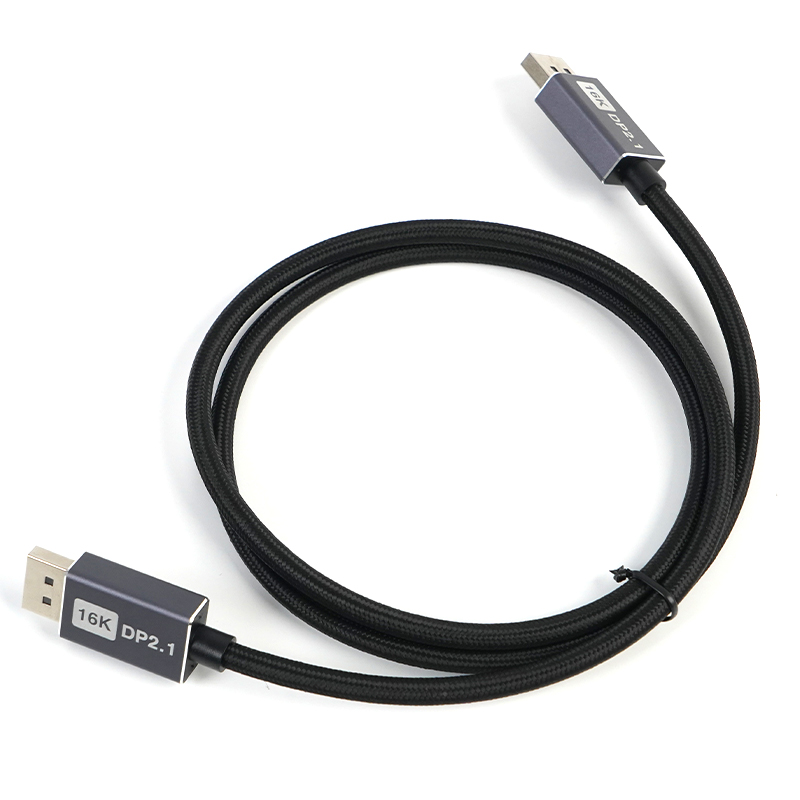
Most signal loss problems don't start at the spec sheet limit—they start with a cheap connector or a sharp bend. For HDMI copper, you can usually push 1080p to about 10 meters (33 feet) before dropouts become random, but 4K needs shorter runs, often under 5 meters. USB 2.0 is fine at 5 meters, but USB 3.x falls apart after 3 meters unless you add an active repeater. These aren't hard stops; they're where the eye pattern closes enough for retries and flicker.
Balanced audio is a different animal. XLR cables carrying mic or line level can run 100 meters (330 feet) without audible degradation because the twisted pair rejects common-mode noise. But real-world installs with cheap spiral shield and pin 1 problems will hum well before that. Star quad cable extends the clean length even further, but at some point you're better off moving to a digital snake.
Coax and Ethernet have their own sweet spots. RG6 carries HD video cleanly to about 45 meters (150 feet); RG11 doubles that but is stiff and hard to terminate. For Ethernet, the 100-meter spec assumes solid copper and no patch panel mess. In practice, keep permanent links under 90 meters and leave headroom for patch cords. The real trick is measuring, not guessing—cheap cable testers miss marginal links that fail only under traffic.
Fiber vs Copper: Which One Fits Your Gaming Desk
If your gaming desk sits within a few meters of the router and you're tired of wrestling with stiff fiber patch cables, copper still holds its ground. The familiar RJ45 Ethernet cable bends where you need it, snaps into place, and rarely throws a driver fit. More importantly, copper's latency over short runs is effectively identical to fiber—we're talking microseconds, not the milliseconds that decide a ranked match. The real difference shows up when your desk is in a room packed with phone chargers, LED strips, and a mini fridge humming away.
Fiber earns its keep if that same desk is 30 meters or more from your network gear, or if your gaming PC doubles as a home server shuffling large files while you stream. Glass strands shrug off electromagnetic interference that can make copper cables retransmit packets. For most players, though, a quality Cat6a run is cheaper, easier to hide under a desk mat, and won't need an SFP+ adapter that your motherboard probably doesn't have.
So the choice comes down to distance and environment. A tidy copper cable with a little slack for your monitor arm beats a fragile fiber line that hates sharp bends. But if you've already run a conduit through a wall past a breaker box, fiber is the quieter, cooler companion under your desk.
The Spec Most Buyers Overlook Until the Screen Flickers
Most spec sheets lead with brightness, resolution, and contrast, but there's one figure that rarely gets a second glance: the refresh rate or the panel's dimming method. It only becomes real when you're scrolling through a long page and notice a subtle stutter, or when you lower the brightness at night and see the screen pulse in the corner of your eye. That's the moment the overlooked spec stops being a number and starts being a nuisance.
On many laptops and phones, the flicker comes from pulse-width modulation dimming. To make the screen appear dimmer, the backlight switches on and off hundreds of times per second. At high brightness, the flicker is too fast to notice. At low brightness, the pulses stretch out, and some people feel eye fatigue, headaches, or a faint rolling band across the display. By the time a buyer figures this out, the return window has often closed. A quick in-store test at minimum brightness with a phone camera aimed at the screen reveals the issue before money changes hands.
Top Cable Picks for High Refresh Rates Without the Marketing Hype
Most cable debates ignore the fact that a properly made 48Gbps HDMI or an HBR3 DisplayPort cable from a mid-tier brand will drive 1440p at 240Hz or 4K at 120Hz without breaking a sweat. The real bottlenecks are length, connector wear, and fake certification labels. If you keep passive copper runs under two meters and avoid the cheapest no-name bulk listings, you rarely need to spend more than $20.
For high-refresh setups, prioritize what your GPU and monitor actually negotiate. A DisplayPort 1.4 cable with DSC support covers nearly every current monitor, including 1440p 360Hz and 4K 144Hz, as long as both ends support DSC. On the HDMI side, any Ultra High Speed certified cable handles 4K 120Hz and 1440p 240Hz with headroom. Skip the “diamond-plated” and “military-grade” nonsense—look for the certified bandwidth spec and a sturdy strain-relief boot, then buy two and test.
Build Quality Checks That Save You From Mid-Game Disconnects
Nothing wrecks momentum like a sudden drop right as a boss mechanic lines up. The most reliable way to avoid that is to validate connection stability before a run starts, not after the loading screen freezes. Run a quick packet test to the game server, check for jitter on your local hop, and confirm your routing isn't pinballing through a congested backbone. Treat this as part of your pre-game ritual, same as keybinds or gear presets.
Mid-game disconnects also come from hardware and driver states that only show under sustained load. Watch for thermal throttling spikes, USB controller resets, or a network adapter that drops its negotiated speed after thirty minutes of heat. Logging those metrics across a few sessions gives you a clear pattern: if the disconnect clusters around a specific temperature or a certain packet queue depth, you can address the trigger instead of guessing.
Finally, build a lightweight failover check that doesn't require you to babysit. A script that pings your gateway every two seconds, tracks packet loss over a rolling sixty-second window, and flashes a subtle overlay warning when stability dips below threshold is enough. It won't prevent every server-side hiccup, but it turns random-feeling drops into something you can see coming and react to before the screen goes dark.
FAQ
The jump to UHBR20 gives you up to 80 Gbps of bandwidth, so you can run uncompressed 8K at 60Hz or 4K at 240Hz without leaning on heavy compression that softens fine detail.
Check for a UHBR certification and a specific data rate like UHBR10, UHBR13.5, or UHBR20 on the packaging. A generic “8K ready” label doesn’t guarantee it can handle the full 2.1 bandwidth.
It can. Passive copper cables often struggle beyond two meters at these speeds, so for longer runs you’ll want an active cable or a fiber-optic hybrid to keep the 8K signal steady without dropouts.
Yes, the connector is the same shape, so it’s backward compatible. Just remember you’ll only get the speed your older hardware supports—plugging a DP 2.1 cable into a DP 1.4 port won’t unlock extra bandwidth.
Prioritize certified bandwidth and solid shielding. For high-refresh 4K or 8K play, UHBR13.5 or UHBR20 gives you headroom, while good construction reduces the risk of flicker or frame pacing issues during intense sessions.
Copper is cheaper and works great for short desk setups, but fiber handles longer distances with virtually no signal loss. If your run is over three meters, fiber usually saves you from troubleshooting headaches.
It won’t raise your frame rate if your GPU and monitor are limited to DP 1.4, but it gives you a stable foundation for future upgrades and can clear up intermittent signal issues if your old cable was borderline.
Conclusion
DisplayPort 2.1 isn't a quiet update—it rewrites how much bandwidth actually reaches your display, which becomes obvious once you push 8K or chase high frame rates at 4K. The move to UHBR20 changes what a cable must survive, and that's where many generic cables quietly fail. You can read the spec on a box, but real stability hinges on signal integrity over distance. A short passive copper cable feels fine until you try 8K at 120Hz across a longer run; then flicker or dropout creeps in. Under two meters, a solid copper build usually works. Beyond that, active fiber is the practical fix, not a luxury. Also check connector housing and strain relief—loose fits cause random black screens mid-match long before you suspect the cable.
High refresh gaming exposes cable weaknesses faster than desktop use. The spec most buyers ignore is return loss and shielding, and you won't see those on a retail label. Cheap cables can pass a basic handshake but crumble under sustained load, especially near power bricks or Wi-Fi routers. Pick cables with individually shielded twisted pairs and a grounded connector shell. Certification logos help, but don't treat them as gospel; some certified cables still struggle with tight bends behind a monitor arm. Match cable type to your actual distance and refresh target, then run a demanding game for an hour before trusting it in ranked play. That test beats any marketing claim.
Contact Us
Contact Person: David Yang
Email: [email protected]
Tel/WhatsApp: 8615814734054
Website: https://www.ebcyx.com/